
Bible Chat Widget
Your complete guide to having AI-powered biblical and theological conversations on HolyExplorer.
Watch the Demo
See the Bible Chat Widget in action — configuring your denomination and translation, asking a theological question, and sharing AI responses with clickable scripture references.
Getting Started
The Bible Chat Widget is the heart of HolyExplorer — an AI-powered conversation interface purpose-built for biblical study and theological exploration. Ask questions about scripture, Christian doctrine, church history, and faith, and receive thoughtful responses with automatic references to Bible verses and, for Catholic users, the Catechism of the Catholic Church.
What You Need
- An active HolyExplorer subscription (or free trial)
- Available credits in your account
- A Bible translation selected in your chat settings
How to Access It
- Log in to your account at dev.holyexplorer.com
- Click Account → App in the navigation, or go directly to dev.holyexplorer.com/account/#app/chat
- The Chat tab will be active by default
The Chat Interface
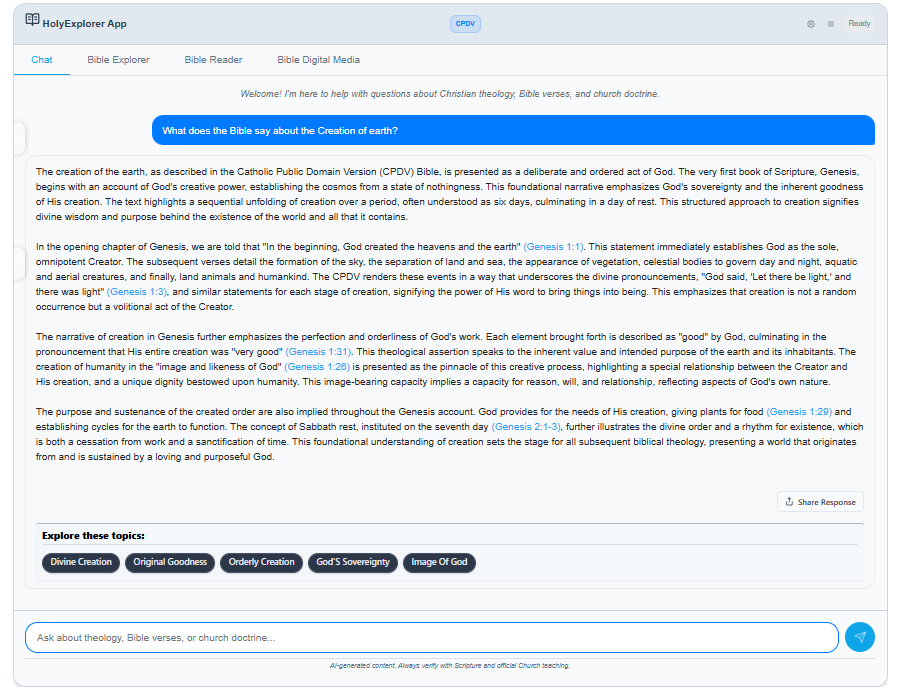
Here is what a typical conversation looks like in the Bible Chat Widget. This example shows a user question, an AI response with automatically linked scripture references, topic exploration chips, and the Share Response button.
Key Elements
| Element | What it does |
|---|---|
| Tab bar (Chat / Bible Explorer / Bible Reader / Bible Digital Media) | Switches between the four main features of the HolyExplorer app |
| Translation badge (e.g. CPDV) | Shows your currently active Bible translation at a glance |
| Message area | Scrollable area showing your conversation — your questions in the blue bar, AI responses below |
| Scripture links (orange text) | Automatically linked Bible references — click to open the verse in a popup |
| Explore these topics chips | Suggested follow-up themes based on the AI response — click to ask the AI about that topic instantly |
| Share Response button | Share the AI response via social media, messaging apps, or copy to clipboard |
| Input field | Type your question here and press Enter or click the send button (↗) |
| Settings icon (⚙) — top right | Opens the Chat Settings panel to change translation and denomination |
| Status indicator — top right | Shows Ready when available, AI is thinking… while a response is generating |
Configuring Your Settings
Open Chat Settings by clicking the ⚙ icon in the top-right corner of the widget. The settings panel has two tabs: Translation and Denomination.
Translation Tab
Select your preferred Bible translation. Your chosen translation determines which version of scripture is used in AI responses and reference popups.
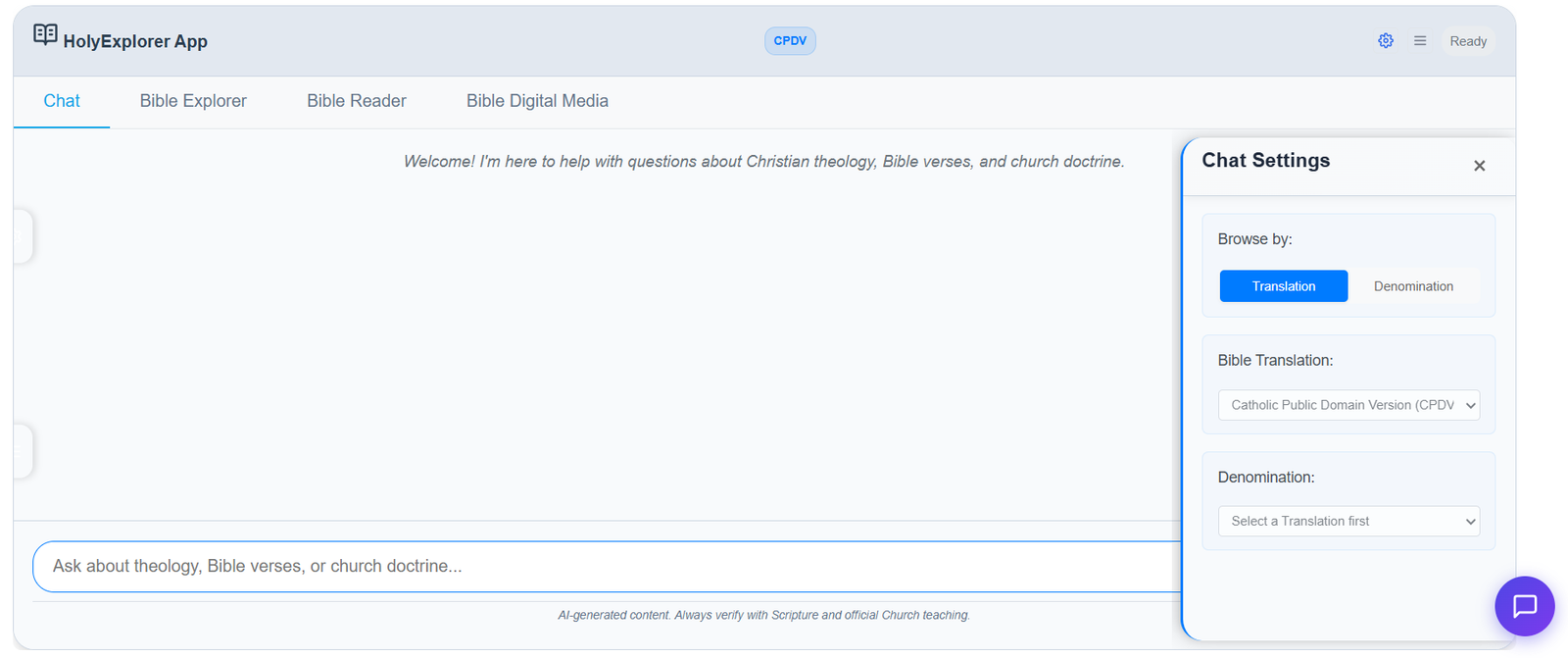
| Translation | Full Name | Tradition |
|---|---|---|
| KJV | King James Version | Protestant |
| ASV | American Standard Version | Protestant |
| WEB | World English Bible | Protestant |
| CPDV | Catholic Public Domain Version | Catholic |
| DRB | Douay-Rheims Bible | Catholic |
Denomination Tab
After selecting a translation, switch to the Denomination tab to set your theological tradition. This shapes how the AI approaches doctrine and which supplementary sources it draws from.
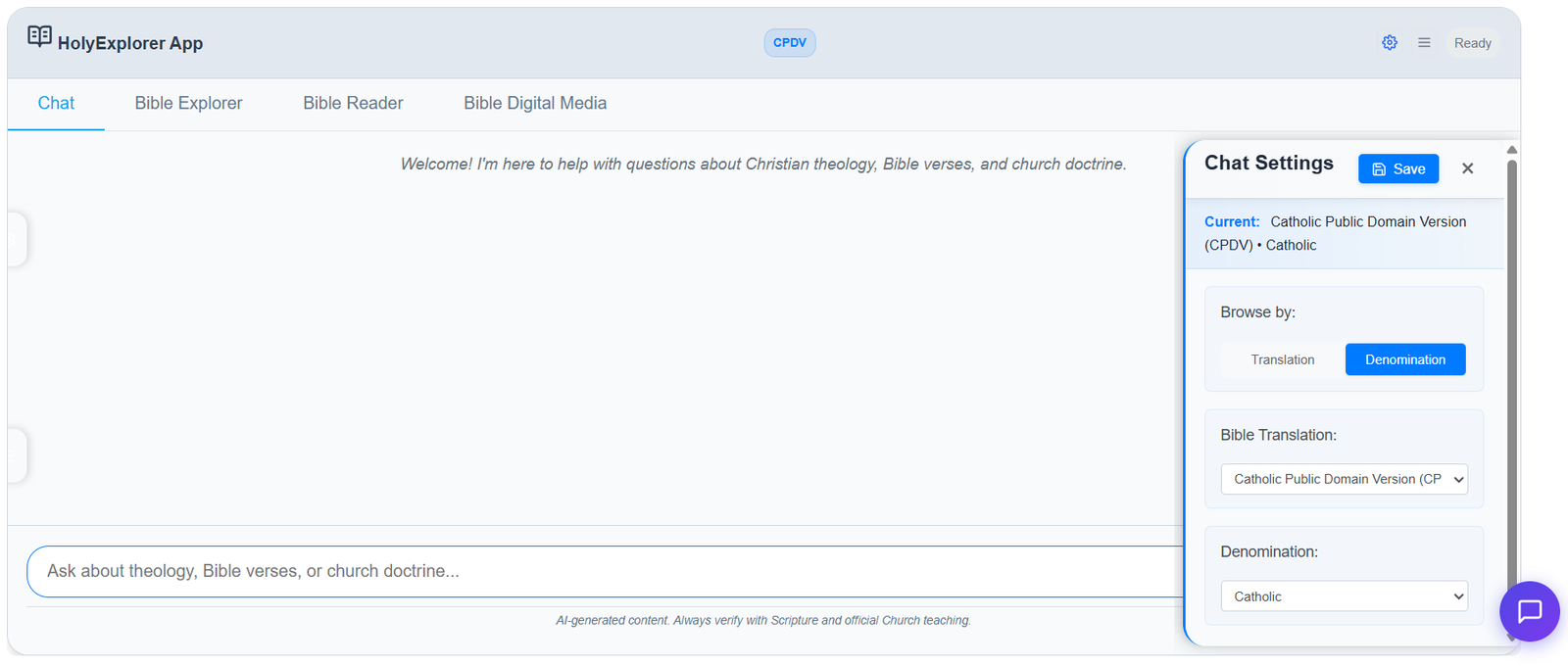
| Setting | Effect on AI responses |
|---|---|
| Catholic | AI includes references to the Catechism of the Catholic Church (CCC). CCC paragraph links are enabled in responses. |
| Protestant | AI focuses on Scripture alone. CCC references are automatically disabled. |
| Non-denominational | Broadly Christian perspective without denominational emphasis. CCC references disabled. |
When you are happy with your selection click Save. Your settings will be applied from the next message onwards and are shown as a summary at the top of the settings panel (e.g. Catholic Public Domain Version (CPDV) • Catholic).
You can change your settings at any time mid-conversation — previous responses in the current session are not affected.
Having a Conversation
Type your question into the input field at the bottom of the chat panel and press Enter or click the send button (↗). The AI will begin responding immediately — you will see the response appear word by word as it streams in.
There is no need to be formal. The widget is designed for natural, conversational questions just as much as detailed theological study.
What You Can Ask
Scripture & Bible Study
- Questions about specific verses, chapters, or books
- Comparisons between Gospel accounts
- The meaning and context of parables and teachings
- Questions about biblical characters, places, and events
- Old Testament prophecy and New Testament fulfilment
Theology & Doctrine
- Core Christian beliefs — Trinity, Incarnation, Resurrection, Salvation
- Denominational differences and similarities
- Historical theological debates and councils
- Questions about sin, grace, redemption, and eternal life
Catechism of the Catholic Church (Catholic denomination)
- Explanations of CCC paragraphs and sections
- How Church teaching relates to specific scripture passages
- Questions about the sacraments, morality, and liturgy
Church History & Tradition
- Early Church fathers and their writings
- The history and canonisation of the Bible
- Saints, martyrs, and significant figures in Christian history
Personal Faith & Reflection
- How to pray and grow in faith
- Scripture for specific situations or emotions
- How to understand difficult or challenging Bible passages
Follow-up Questions
The AI remembers the full context of your conversation throughout the current session, so you can ask follow-up questions without repeating yourself:
Understanding AI Responses
Streaming Responses
Responses appear word by word as the AI generates them — you do not need to wait for the full response before you begin reading. The status indicator in the top-right will show AI is thinking… while the response is streaming.
Automatic Scripture Links
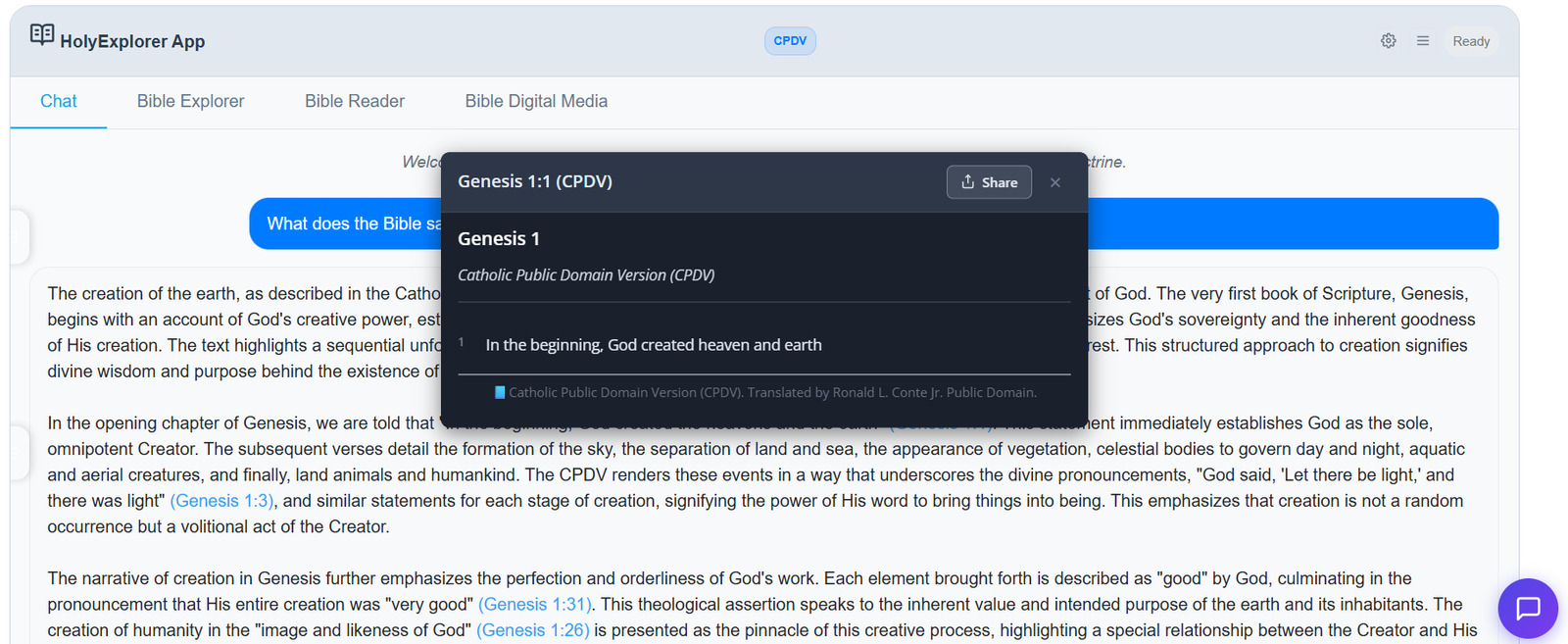
As the AI mentions Bible references (e.g. Genesis 1:1 or Matthew 5:1-12), they are automatically turned into clickable links. Clicking a scripture link opens a popup showing that passage in your chosen translation — without leaving the conversation.
Explore These Topics
At the bottom of many responses you will see a row of topic chips labelled Explore these topics. Clicking any chip sends that topic as your next question automatically — a quick way to go deeper without having to type a follow-up.
Sharing a Response
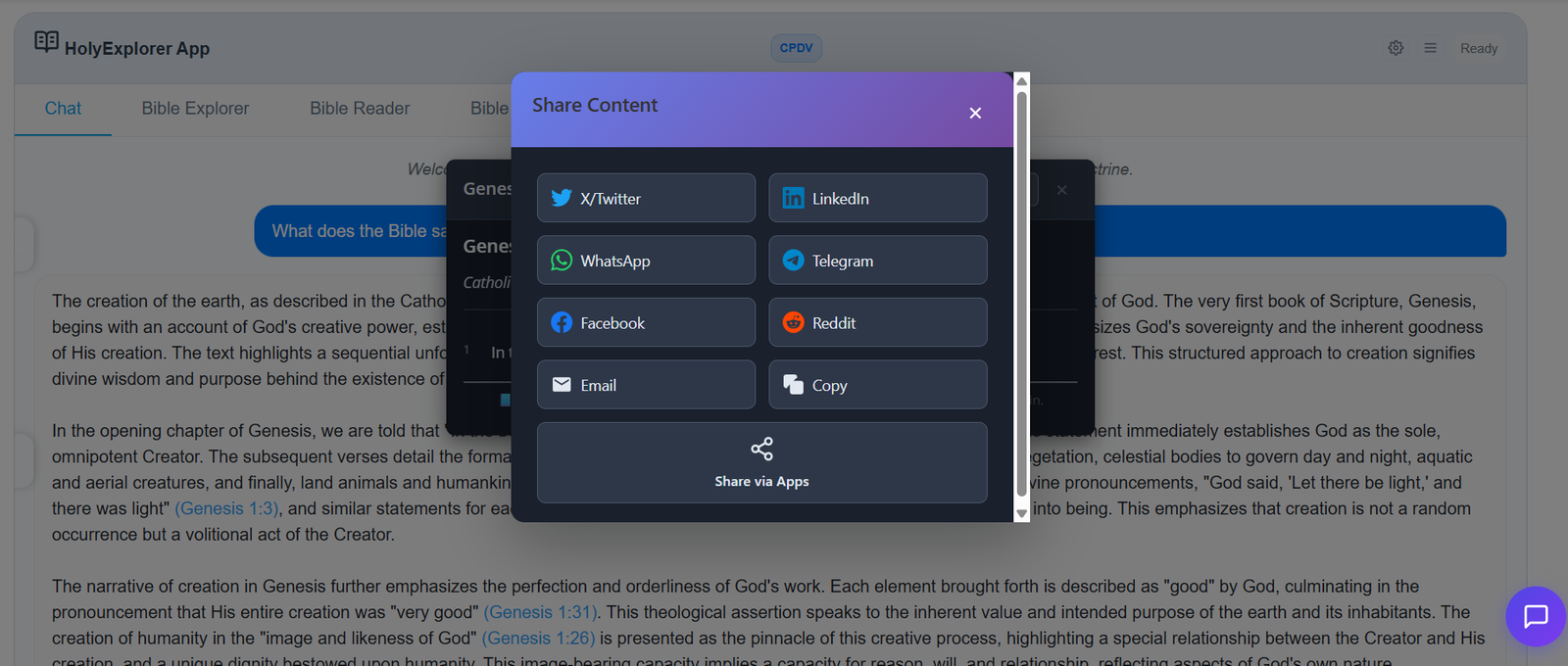
Every AI response includes a Share Response button. Clicking it opens the Share Content panel where you can share the response to social media, messaging apps, or copy it to your clipboard.
Theological Terms
Many responses include a Theological Terms section at the bottom offering plain-language definitions of complex or technical terms mentioned in the response — helpful if you are new to theological vocabulary.
Catechism Links (Catholic denomination)
When your denomination is set to Catholic and a CCC paragraph is cited in a response (e.g. CCC 1721), it is automatically linked. Clicking a CCC citation opens the relevant paragraph in a reference popup, similar to scripture links.
Credit Usage
| Action | Cost |
|---|---|
| Sending a message that receives an AI response | 1 credit |
| Starting or viewing a conversation (no AI response yet) | Free |
| Clicking scripture links, topic chips, or Share | Free |
Credits are deducted when the AI delivers a response — not when you type or send a message. A 20-question conversation uses approximately 20 credits. If a technical error occurs and no response is delivered, no credit is charged.
Your credit balance is always visible under Account → Billing → Plans/Usage. Additional topup credits can be purchased at any time and never expire.
Tips for Better Conversations
Be specific about the scripture reference
State your tradition when it matters
Ask for comparisons when exploring different views
Use follow-up questions to go deeper
Ask for practical application
Ask for definitions of unfamiliar terms
Frequently Asked Questions
Need More Help?
Our AI Support Assistant is available on every page, or reach our team directly by email.
Contact Support Team